Thinking of customizing your community's design? When mapping out a CSS strategy, you want to make choices that are broadly appealing and welcome the largest possible range of editors and readers. Here are a few best practices that will help.
Before you start, please also read our article Customization policy.
Guidelines
Start with the theme designer
The simplest way to customize your community is to use Fandom's theme designer. It lets you easily change your site's base color palette, wordmark, favicon and background. Anything that can be changed with theme designer should be changed with it. So start there before moving on to CSS.
Colors
Avoid low-contrast, clashing or lurid colors — especially in the content area. You want people to be able to easily read your articles so that they'll stick around longer. You can use websites such as the WCAG Contrast Checker to check whether you're using a good contrast.
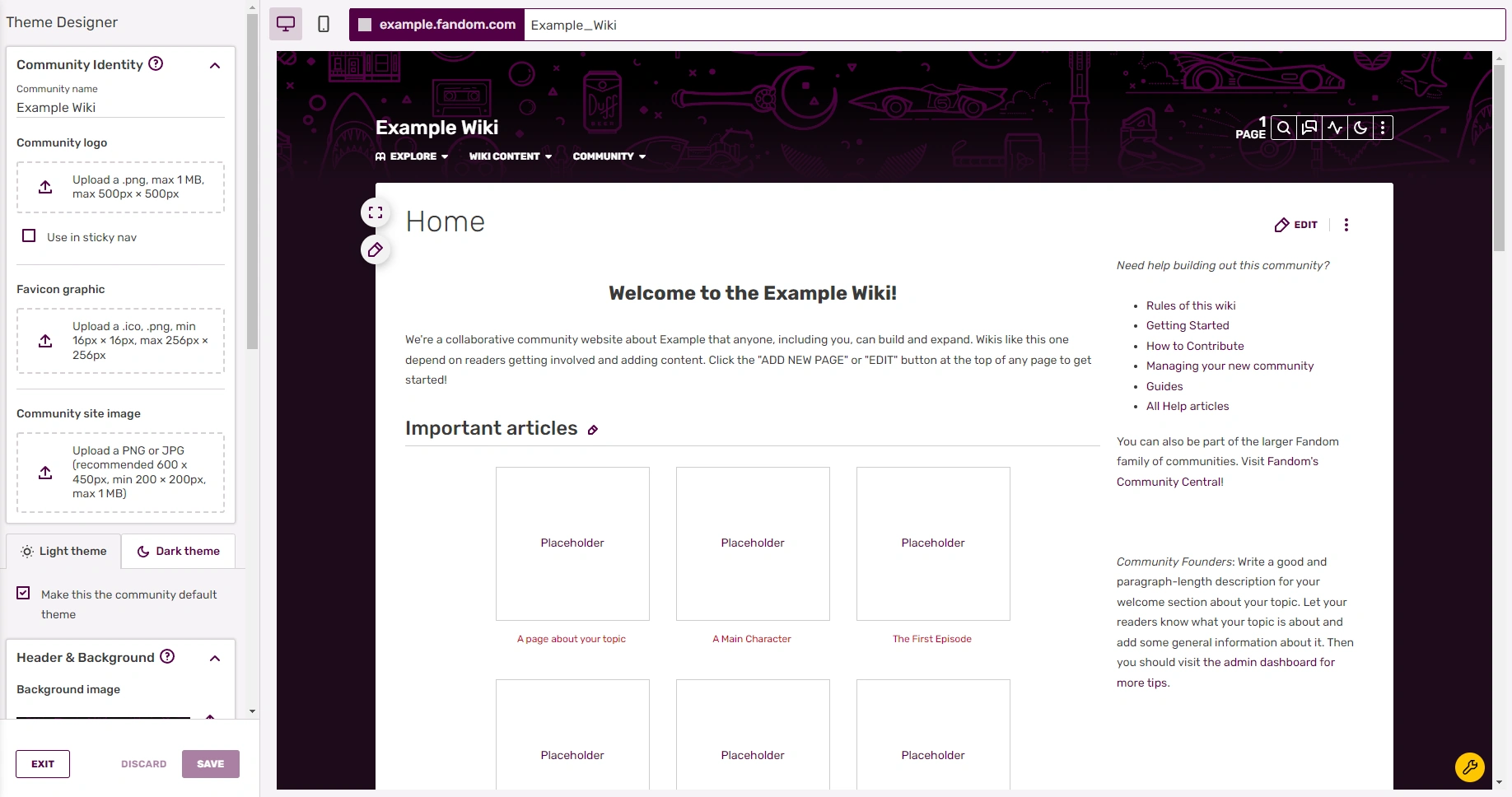

Start with the theme designer before writing any CSS.
Respect users' choice of light or dark themes. You can limit your styles to a specific theme by prepending them with body[data-theme="dark"] or body[data-theme="light"] for dark or light theme, respectively. The colors set in Theme Designer are also set as helpful CSS variables that you can use for simpler theme awareness in your design:
- "Community background color" defines
var(--theme-body-background-color) - "Sticky nav background color" defines
var(--theme-sticky-nav-background-color) - "Community header color" defines
var(--theme-community-header-color) - "Accent color" defines
var(--theme-accent-color) - "Link color" defines
var(--theme-link-color) - "Article background color" defines
var(--theme-page-background-color)
/* This style will only apply if the user is using light theme */
body[data-theme="light"] .example { color: black; }

/* This style will only apply if the user is using dark theme */
body[data-theme="dark"] .example { color: white; }

/* This style will automatically use the value set for var(--theme-page-background-color) on each theme */
.example { background: var(--theme-page-background-color); }
Remember:
- Not everyone's eyesight works the same as yours. A significant number of people have issues with degraded eyesight and color blindness.
- Different devices behave differently. The colors you see on your own display might not work quite as well on another.
- Have good contrast between text and the background.
- Background images are cool, but not if you can't read the text on top of them. Use the Theme Designer's transparency slider with care, especially with a busy background. Add also an appropriate background color.
- Try to avoid busy backgrounds.
- Try not to make font sizes too small, especially in the main text area. It is best to keep the original font size in the main text area.
Fonts
- Custom fonts are welcome, but less is often more. Avoid a strain on the eyes. Watch out where you are allowed to change the font type: Customization policy. It's best not to change the font of the page contents, because they need to be easily readable.
- You can find many free fonts which allow commercial use. You might like to have a look at Google Fonts. If you need help, please follow this guide: Import Google Fonts.
- Avoid use of the Onlinewebfonts font service. It will cause severe loading times for the initial loading of the wiki and often fail to deliver the chosen font.
Keep it simple
CSS offers you a cornucopia of possible effects to make a site really stand out. But you should not overdo it. The goal of CSS is to make the community broadly appealing, and too flashy design may be turning off new readers.
- Use decorative elements only where necessary.
- Avoid anything too "flashy" on the pages. You may add some hover effects e.g to make icons stand out, but keep in mind that wikis mostly are about information. The wiki of course should represent the topic you are writing about in a visually appealing way but also in a manner of reducing anything which could distract or repel the viewer.
Responsive design
Fandom pages have fluid widths. That means they change a bit according to the size of the browser window. Make sure your design fully works by varying the width of your browser during testing. If you can, test your design on an actual tablet, as well.
Write readable code
Write code that can be read and understood easily. Since your CSS will almost certainly be read by others at some point:
- annotate it with clear comments like
/* This code does x, y and z */(it should be something not only you understand with context, but also anyone who will read and edit the code without being familiar with it) - give your custom classes and IDs understandable names. If it makes a box around something, consider calling it
.box, not.tlk328 - add in spacing and indentation to your community's tastes — but pick one format and stick with it
- organize the code logically, keeping code that affects the same part of the wiki together.
Naming classes
Custom classes should preferably be given descriptive and consistent names, so that it's easy to e.g. associate a class in the CSS file with the template which uses the class, or vice versa.
It is also highly recommended to give every class created for the wiki a prefix associated with the wiki (e.g. "filk-" on the Filk Discography wiki). This is because all classes are global, and the classes used in the default skin and MediaWiki engine use names such as notice or toc. By using the prefix you signal that the class is declared on the local wiki, but you also make sure that you don't accidentally use a pre-defined class name.
Performance considerations
Images and fonts which are used through CSS are often used very frequently or widely. That can make even minor performance gains very noticable, and this is especially apparent when self-hosting such files (as opposed to e.g. load fonts through Google Fonts). There are fundamentally three different syntaxes to specify an URL in CSS to a file that lives on a wiki:
- src:url('/wiki/Special:Redirect/file/NAME OF FILE')
- This method is easy to maintain, but may cause the file to not be properly cached by the web browser since the web browser will be redirected to the actual file. For one-off files the redirect is likely not significant, but for font files or commonly used images, this might introduce noticable delays in rendering since the file cannot be cached. Recommended for files used on one page
- src:url('/wiki/Special:FilePath/NAME OF FILE')
- This method first causes a redirect to the above syntax, and then a second redirect to the actual file. It is thus not recommended. Not recommended
- src:url('https://static.wikia.nocookie.net/NAMEOFWIKI/images/X/XY/NAME_OF_FILE')
- This method requires the lookup of the raw URL where the file is stored, which can be found using the file link on the file page. It is thus far more labor intensive to find and is harder to maintain. However, it allows for caching by the web browser, and will thus reduce network loads and increase rendering speeds. Recommended for files used on many pages
In addition, it's important to keep in mind that adding different @import rules is affecting the page performance. A best practice is always having everything in one single page, and only importing this one.
Useful links
- Customization policy - Fandom's policy on allowed customizations
- W3Schools - an online guide to CSS
- Mozilla Developer Network - an online CSS documentation
- CSS-Tricks - an online CSS code library of supported codes
- CanIuse - tables for support of front-end web technologies on desktop and mobile web browsers.
- The W3C CSS Validation Service - this helps check for code errors, similar to Special:CSS itself.
Further help and feedback
- Browse and search other help pages at Help:Contents
- Check Fandom Community Central for sources of further help and support
- Check Contacting Fandom for how to report any errors or unclear steps in this article