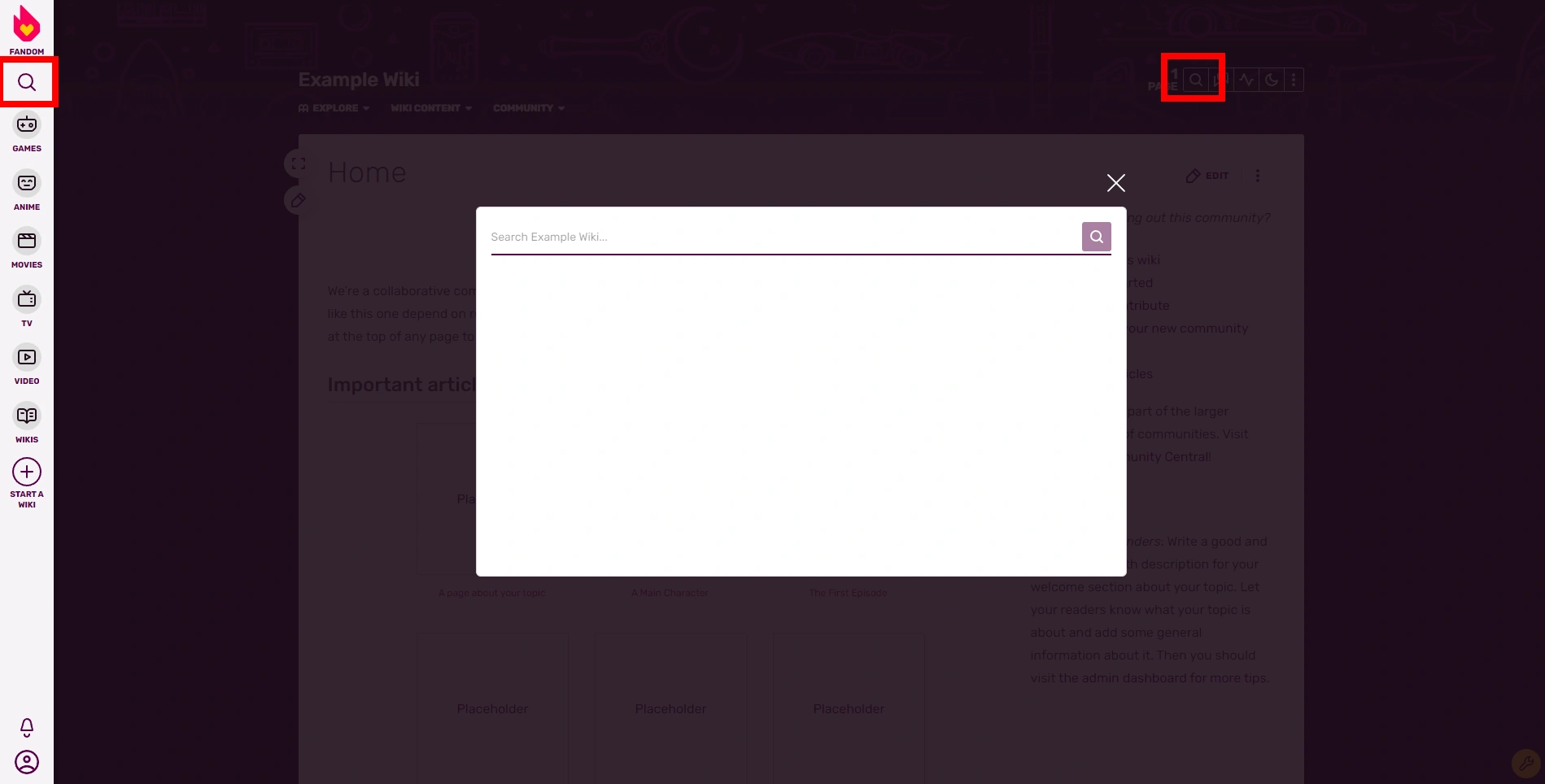

The standard wiki search entry points are highlighted. Clicking them opens the Search modal.
To search any Fandom community, you can use the search box available through the magnifying glass icons on the Fandom bar to the left and the navigation bar at the top of every page.
When you're on an individual wiki, searching takes places within that community, but when you're exploring fandom.com, you'll instead be making a search for both news articles and wikis that cover that topic.
Features
Since late 2016, internal wiki searches are powered by a custom engine.[1] This includes certain features such as:
- Stemming[2] — For some languages (e.g. English) it can automatically match words that share a common root. This means that when searching for "practice", the engine also looks for "practicing", "practices", "practiced", and so forth.
- Excluding words — When words are prefixed with
-, such as-foo, the engine will exclude pages that contain those words. This was previously performed using the now defunctNOTkeyword. - Whole word matches — Wrapping individual words or a group of words with (
") allows for exact whole word matches instead of stemming. This means that when searching for "practice", the engine will not look for "practicing", "practices" or "practiced". - Character folding[3][4] — The search engine can also handle diacritics by normalizing the text in the before searching (this might not work for all languages), e.g. "introducao imersao" == "introdução imersão", fiancée == fiancee.
Additional features:
- Search by file types — namely videos or images.
- Search by wiki type — starting November 25, 2020, the search box was expanded to include an option to search either the current wiki, or all other wikis.
- Search by posts type — starting December 18, 2020, new in the Special:Search page is a Posts option which allows you to search through Discussions posts.
Removed features:
- Boolean search —
AND,ORandNOTare no longer reserved keywords.ANDis now the default behaviour (foo barwill now look forfoo AND bar), andNOThas been replaced by-(-fooinstead ofNOT foo).
Advanced search
Your initial search will likely only search the main namespace, plus a few others. After you search, you may find that you need to expand your search to other areas of the wiki. To do this, click the "Advanced" link that appears at the upper right side of the search results page. It will open a box that allows you to select more namespaces and continue searching.
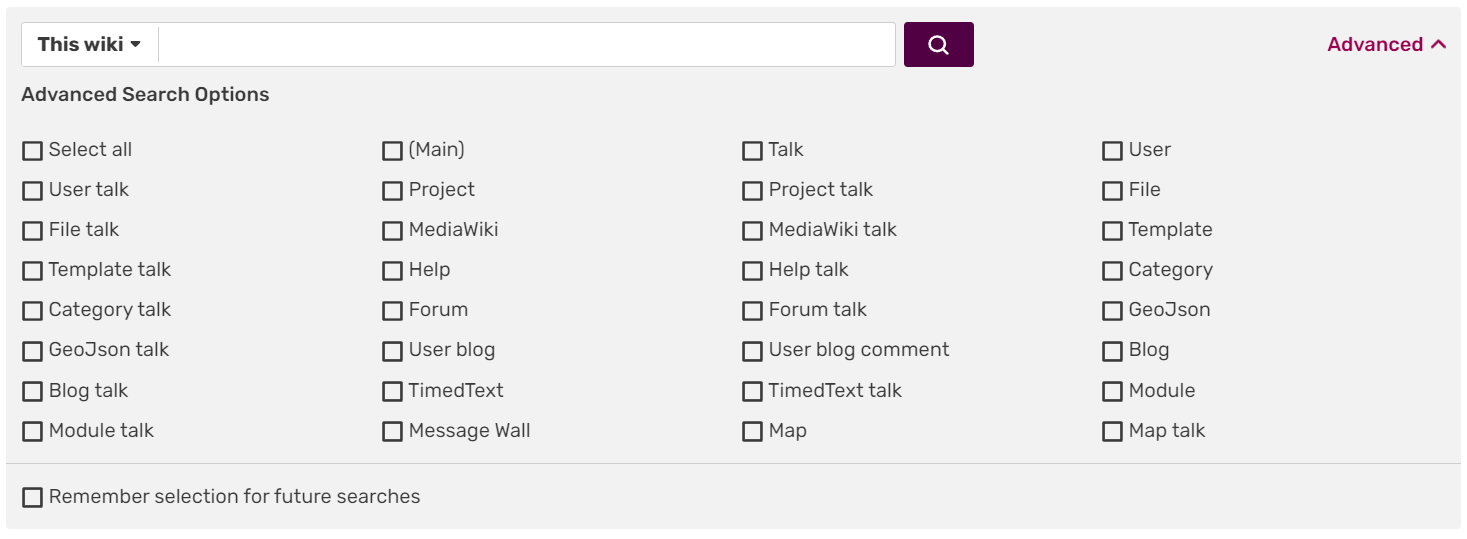

Advanced search allows you to select more namespaces
Special symbols
The search engine allows certain symbols that may yield more or less results. One should note that certain symbols are ignored and stripped from the search results; for example, Paper&planes and Paper+planes are equivalent to Paper planes.
- -
- This excludes a certain word from the search, e.g. Infobox -portable.
- "
- This is for exact (whole word) matches, unlike the default behaviour of stemming and character folding. May be used on individual words, or a group of words separated by space. Other words may appear between each word.
- Compare "portable" (exact match) to portable (stemming "portal").
- Likewise compare, "foru" (likely to have 0 results) to foru (which is prefix of "forum").
- "Prevention" "Obliteration" will match all pages that contain exactly "Prevention" and exactly "Obliteration", in any order.
- "Obliteration Prevention" will match all pages that contain exactly "Obliteration" and exactly "Prevention", in the order specified.
- However, this doesn't seem to work for matching words that start with
-("-5"), and "foo -bar" is the same as "foo" followed by -"bar".
- Combined
- The above symbols can be combined to yield different and sometimes better results, e.g. Infobox "portable" -classic.
- When a combination of exclusion (-) and exact match (") are used on the same word, then depending on the order or similarity it may return zero results:
- -infobox infobox (excludes stem and then includes stem "infoboxes")
- infobox -infobox (inclusion cancelled by the exclusion)
- -infobox "infobox" (exclusion and whole-word cancel each other)
- -"infobox" "infobox" (cancels each other out)
- "infobox" -"infobox" (cancels each other out)
Other ways to find pages
- To search for content across all of Fandom or to look for communities focused on a specific subject, use the search box on our main page.
- To browse pages on a specific community, you can view a list of all pages or browse by category. See Special:ListFiles to search for images.
- You can also use Google's site search to search all Fandom communities.
Search box
- It is possible to add a search box to any page. To do this, just type:
<inputbox>type = search</inputbox>in the source editor. It will produce this box:
Next pages
- Learn how to organize a page
- Learn how to create a table
- Learn how to create a template
Further help and feedback
- Browse and search other help pages at Help:Contents
- Check Fandom Community Central for sources of further help and support
- Check Contacting Fandom for how to report any errors or unclear steps in this article
References
- ↑ User blog:Daniel Baran/Search Developments: Big Picture
- ↑ Stemming for full-text. https://dev.mysql.com/worklog/task/?id=2423. Retrieved 2016/10/07
- ↑ Character folding. https://www.elastic.co/guide/en/elasticsearch/guide/current/character-folding.html
- ↑ http://www.unicode.org/reports/tr23/