You can upload an avatar to represent yourself in Fandom's communities. It will appear in several locations and give users another way to identify themselves to others.
Desktop
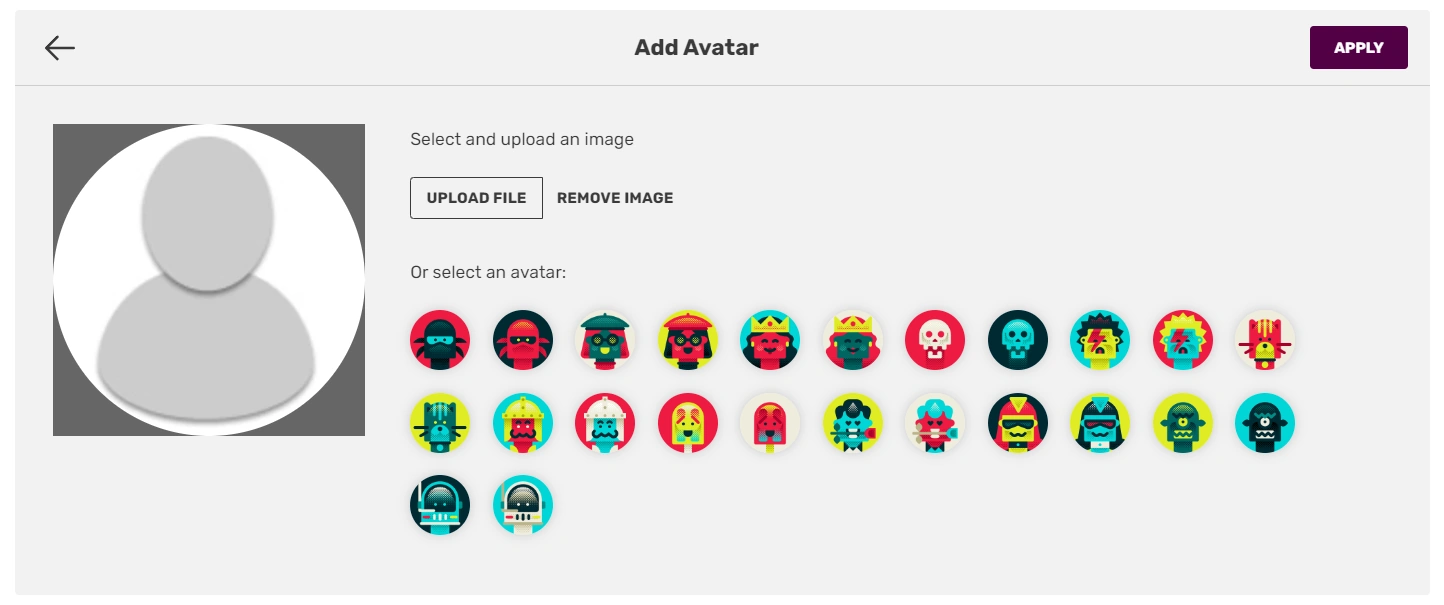

Selecting an image to use as your new avatar.
To upload an avatar for your profile while on desktop:
- Save your chosen image to your computer (if not there already).
- Go to your user page.
- Click on the "Edit profile" button in the top right.
- Click the edit icon in the corner of your current avatar.
- Press the "Upload file" button and choose your image, or choose from one of Fandom's pre-loaded avatars.
- If you are satisfied with your avatar, click the "Apply" button.
- Finally, click "Save" on the top right corner of the profile menu to save your changes.
Fandom app
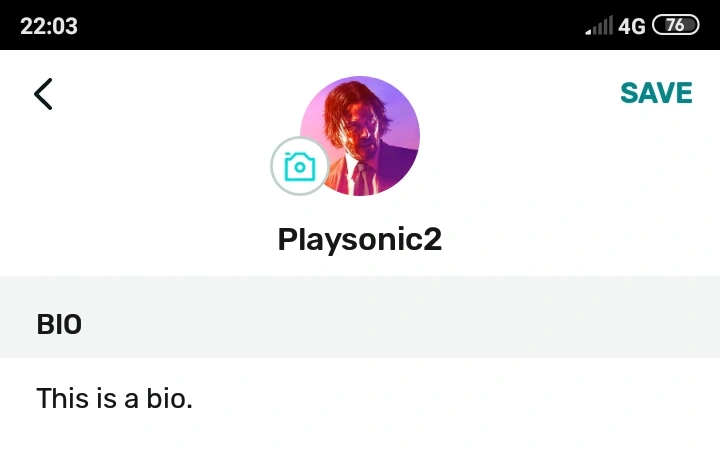

When editing a profile in the app, the blue camera icon allows you to change your avatar.
To upload an avatar for your profile using the Fandom app:
- Save your chosen image to your device (if not already).
- Go to your user profile via the profile button on the right in the bottom bar.
- Tap the pencil icon on the top right part of the screen.
- Tap the camera icon next to your current avatar and choose your image.
- Crop or select the area of your image you want to be seen.
- Tap the check mark on the top right corner of the screen.
- Then, tap "Save" on the top right corner to save your avatar.
Notes
- Errors while uploading, editing, and saving the profile picture will always show a cryptic "Error: There was internal error while saving the avatar" message. Make sure the image you are uploading conforms to the note below.
- Your image must be a JPEG, PNG, or GIF, and it must be less than 500kb in size. The image should be 150x150 pixels or more significant. Animated images are allowed and animate.
- Of course, 500kb is pretty tiny. Most phone cameras, by default, take images that are much, much larger. If you want to use an image you've taken on your phone, you'll likely have to run it through an image editor or a compressor to lower its size.
- You can switch back to one of the default avatars or choose a new one anytime by editing your profile avatar using the same procedure outlined above. (Note: Each time you switch to a custom avatar, you must upload a new version of that image.)
- Changing avatars is known to cause problems on mobile devices. If you cannot change it, use a computer or contact Fandom.
- When a user is globally disabled by user choice or Fandom, one of the default avatars will appear, with only one avatar for older accounts globally disabled.
Avatar locations
Your avatar will show up:
- On the header at the top of your user page.
- Next to your blog posts and comments.
- Next to your posts on message walls, article comments, and Discussions.
- Next to your entries on the sidebar of the Community Page.
Choose your avatar wisely!
Gamepedia
Gamepedia wikis use Gravatar to display an avatar based on your email address set in preferences. If your email is changed, the Gravatar account needs to be updated to match to change the avatar. Note that only avatars rated "G" will appear.
Gamepedia and Fandom avatars are separate; you must set both if you want your avatar to appear on both systems.
See also
- Help:Profiles - Manage other parts of your user profile
- Help:Preferences - Manage your user preferences on Fandom
Further help and feedback
- Browse and search other help pages at Help:Contents
- Check Fandom Community Central for sources of further help and support
- Check Contacting Fandom for how to report any errors or unclear steps in this article