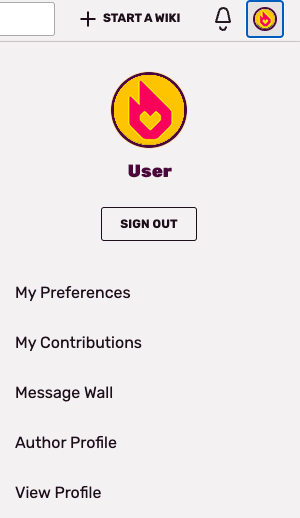

You can locate your preferences menu easily by clicking your avatar.
Logged-in Fandom users can adjust their personal preferences to customize their reading, writing, and editing experience on Fandom based on their own style. These preferences apply to all Fandom communities visited, and can be accessed by hovering over the avatar at the top right corner of the screen and selecting "My Preferences". This will navigate to the page by link.
What are the different tabs for?
This help page will walk you through the current preference options Fandom users have and explain the effects of changing these options, addressing these in order from tab-to-tab.
Tabs are organized to clump together related preferences so that it is easier to find the relevant field to change. By default, there are seven tabs on the Special:Preferences page.
Note that none of the changes you make to your preferences will be stored unless you press the "Save" button. You can also reset your preferences to the default settings you had when you registered for Fandom by clicking "Reset settings" in the "Basic information" section for the "User profile" tab. This can not be undone, so choose wisely if you wish to reset.
User profile
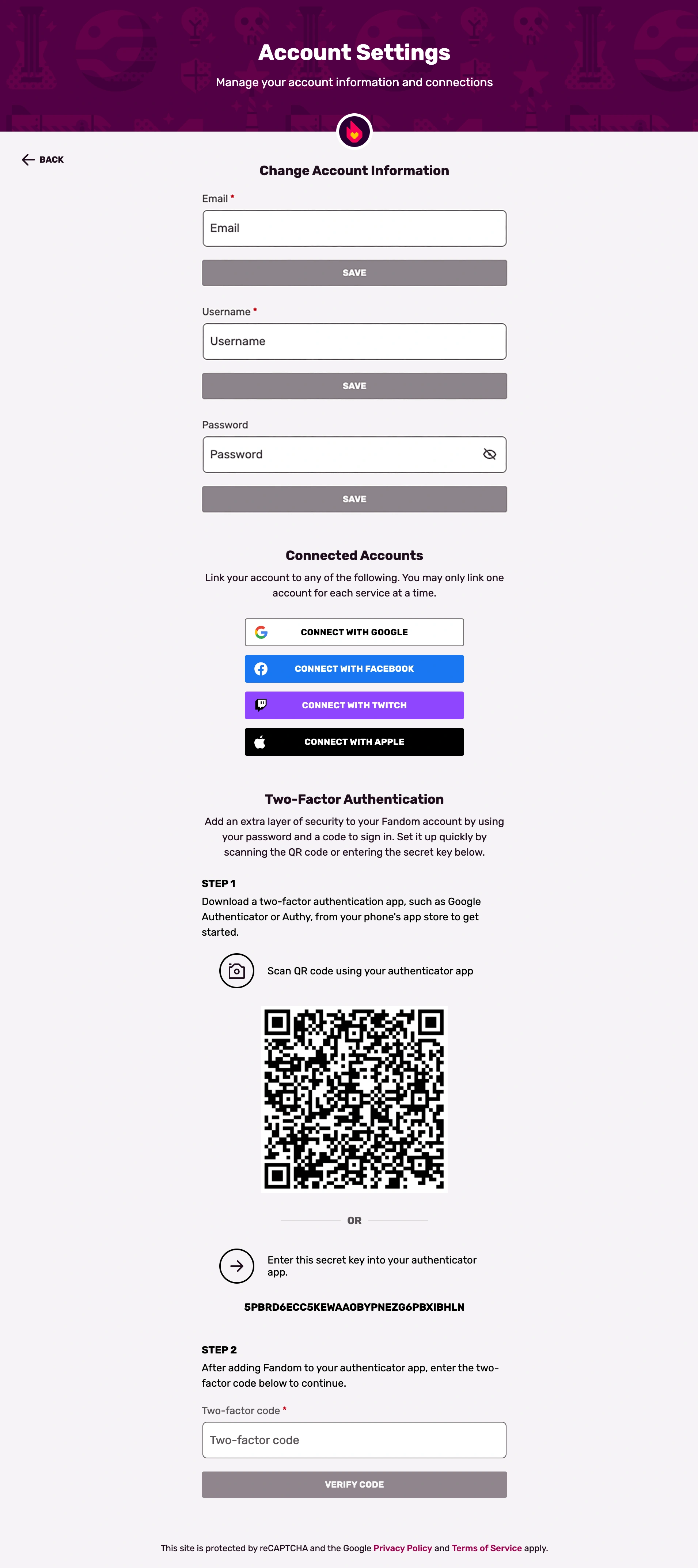

The Account Settings page, where you can change your password, connect or disconnect from social accounts and manage the two-factor authentication for your account.
- Basic information
- Username: Simply shows your username. You cannot change your username through the preferences screen. If you wish to change your username, please see this page on username changes.
- Member of groups: Lists the user groups you belong to on the current wiki community.
- Number of edits: Number of contributions (edits) you've contributed to the current wiki community.
- Registration time: Date and time for when your account was created (when you signed up).
- Access account data: A HTML version of your account data for the project.
- Reset settings: Restore all default preferences in all sections. This can not be undone.
- My password: Allows you to change your password using the Account Settings page.
- My accounts: Link to the Account Settings page to connect or disconnect your social accounts with your Fandom account.
- 2-factor authentication: Link to an Account Settings page where you can manage two-factor authentication for your user account.
- Internationalisation
- Language: Just your language, defaults to English. In selected language, interface messages will show.
- How do you prefer to be described? This is how the system will mark your gender. (he/she/neutral)
- The purpose of this preference is for international languages in which proper nouns need a gender form.
- Signature
- Your existing signature: Renders your signature, including all wikitext.
- New signature: Where your signature can be changed.
- Wikitext you use will be converted when the signature is used unless you uncheck the "Treat signature as wikitext (without an automatic link to your user page)" box.
- Email options
- Email: Here, you can see and change your current email.
- Email confirmation: Here, you can confirm your e-mail or see, when you've done that.
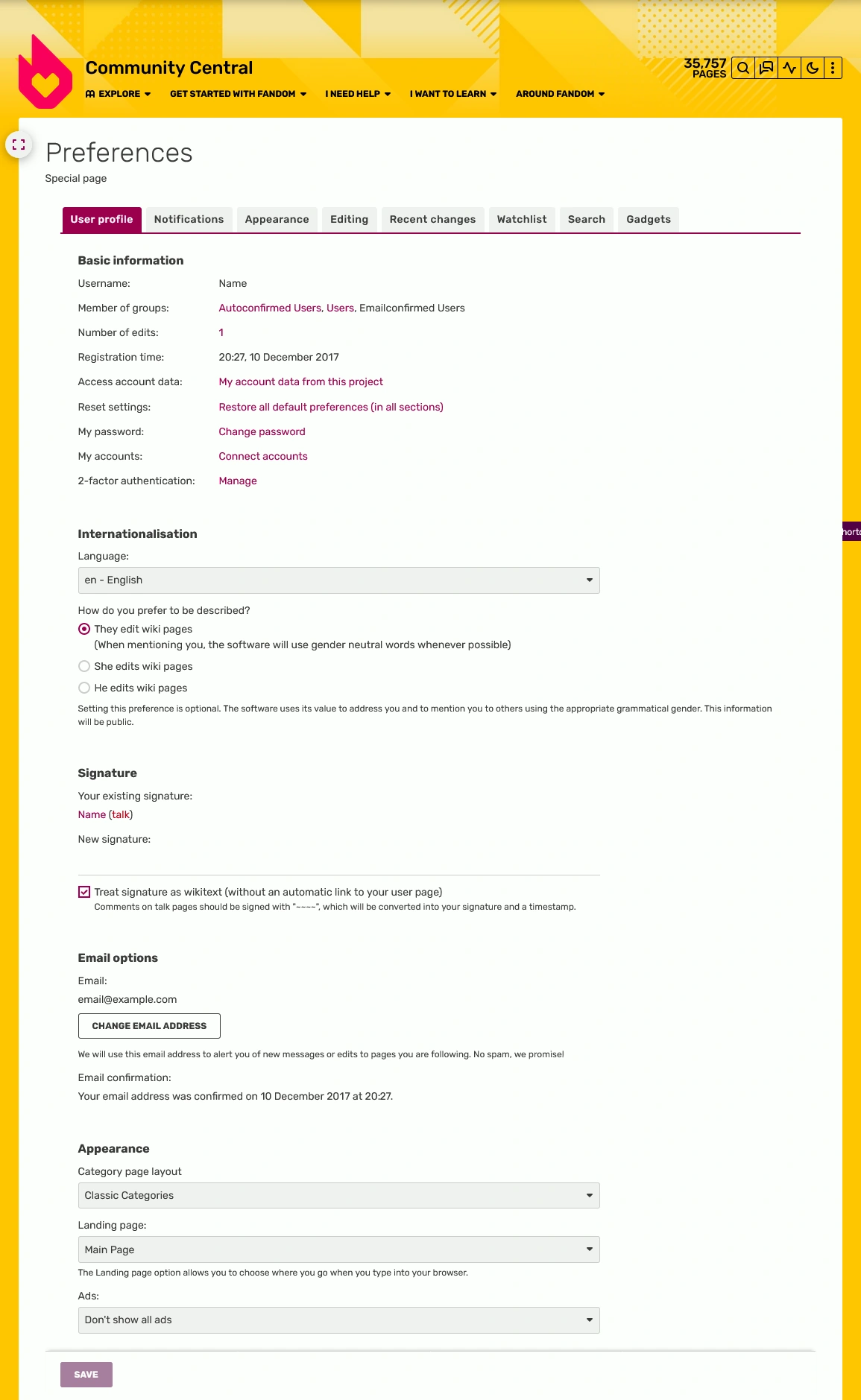

Special:Preferences, showing the first tab.
- Appearance
- Landing page: Users can either choose between going to the Main Page of a community, to Recent Changes, or Community Feeds when going directly to the community's URL from the address bar. Clicking on the wiki's wordmark will also take you to the landing page of your choice.
- Category page layout Users can choose between Dynamic or the Classic category layout.
Notifications
The email tab allows users to control the type and volume of emails they receive from Fandom.
- Email notifications for all wikis
- Now that you have managed your subscriptions to a page through the followed page feature, you can also choose how much communication you receive about those pages. These are fairly self-explanatory. Some quick notes:
- Communities with the old user talk page system rely upon the previous box of "my user talk page is changed" for those followed pages emails.
- Unsubscribe from all emails for all wikis
- Email communication is a critical tool that allows you to stay attuned on what is happening on your favorite communities as well as on Fandom as a whole.
- The Email tab provides plenty of options to suit the types and volume of emails you receive from Fandom. If you have concerns about email, we would suggest you review your general email preferences first.
- That said, Fandom does respect your right to not be emailed from our network if you do not wish to be contacted by us. As such, if you check this box, you will not receive any emails from Fandom until the checkbox is unchecked.
Appearance
- Skin
- Enable personal JavaScript (Learn more) It allows personal JavaScript files to be loaded. This option is off by default. When this option is disabled, personal JS will not be loaded.
- Desktop layout
- This customizes the FandomDesktop skin. They can also be toggled using the side buttons, and the local navigation tools. It has the following options:
- Content Width – Changes the content width, from a large expanded view (for ease of viewing data), to a default maximum width (for reading).
- Right Rail – Toggles the right rail
- Theme – Changes the theme from light, dark, or the theme set by the wiki's administrators.
- Date format
Allows for users to change how they wish to see timestamps.
- Time offset
- Time zone: Allows for users to override the server time (which is in UTC) with the time zone of their own choice. Users can either select their geographical region to determine time zone from a dropdown list or can enter the offset manually using the next input box.
- This will not affect the timestamp in user signatures.
- Files
- Image size limit on file description pages: Default is 800x600px
- Thumbnail size: Default is 180px
- Diffs
- Don't show page content below diffs
- Don't show diff after performing a rollback
- Advanced options
- Link underlining: Default is "Skin or browser default"
- Show hidden categories
- Show a confirmation prompt when clicking on a rollback link
- Enable Go-Search
- Math
- ⧼mw math png⧽ Shows math output as image
- ⧼mw math source⧽
- ⧼mw math mathml⧽
- Featured Video
- Show all videos – It will show all videos
- Don't show all videos – Reduces how many videos will be shown
Editing
- General options
- Enable section editing by right clicking on section titles – Applies to H2 or H3 headlines.
- Edit pages on double click – A JavaScript shortcut that allows you to simply double click on the body of a page to open the editing window.
- Editor
- Edit area font style: This option allows you to choose which font style you'll see when you edit. Defaults to "Browser default".
- Mark all edits minor by default – Editing a page will have the checkbox "This is a minor edit" checked by default.
- Prompt me when entering a blank edit summary (or the default undo summary) – When the box is ticked, the summary windows will appear if you didn't specify any details in "Describe what you changed" (does not apply for the 2010 wikitext editor)
- Warn me when I leave an edit page with unsaved changes
- Enable the editing toolbar – When the box is ticked, make the editing toolbar appears at the top (only applies for the 2010 wikitext editor)
- Do not show link suggest in Source mode – When the box is ticked, it doesn't show the suggestion of links when editing. (only applies for the 2017 wikitext editor)
- Preferred editor: Choice between:
- VisualEditor
- Source editor (2010 wikitext editor).
- VisualEditor - source mode (2017 wikitext editor)
- For more information, see Help:Editing.
- Preview
- Show preview when starting to edit
- Show preview before edit box – Shows the preview on top of the edit box (2010 source editor only)
- Show preview without reloading the page – Also known as AJAXPreview, previews the page without loading the page. However, when previewing with this option, the display may be sometines inaccurate. AJAXPreview is also used internally by VisualEditor.
- Editing experience
- Disable Category module – Only applies if visual mode editing is disabled.
Recent changes
- Display options
- Days to show in recent changes: Default: 7 days.
- Number of edits to show in recent changes, page histories, and in logs, by default: Default: 50 edits.
- Advanced options
- Group changes by page in recent changes and watchlist – Find more here. Must have JavaScript enabled.
- Use non-JavaScript interface – Loads recent changes and related changes without the filtered search or the highlighting functionality.
- Changes shown
- Hide minor edits from recent changes – suppresses all edits on the feed marked with "m".
- Hide patrolled edits from recent changes – suppresses all edits that have been patrolled.
- Hide patrolled pages from new page list – suppresses all pages that have been patrolled.
Watchlist
- Edit watchlist
- View and remove titles on your watchlist – Remove articles from your watchlist by checking the ones you'd like to remove then pressing the red button "Remove titles"
- Edit raw watchlist – A raw list of your watchlist that you can manually edit. Add new articles or remove some.
- Clear your watchlist – Clean slate for your watchlist. This can not be undone.
- Display options
- Days to show in watchlist: Defaults to "3" days.
- Maximum number of changes to show in watchlist: Defaults to "250"
- Advanced options
- Expand watchlist to show all changes, not just the most recent
- Add direct unwatch/watch markers (×/+) to watched pages with changes (JavaScript required for toggle functionality)
- Use non-JavaScript interface: Loads watchlist without filters search or highlighting functionality.
- Changes shown
- Hide minor edits from the watchlist – suppresses all edits on the feed marked with "m".
- Hide bot edits from the watchlist – suppresses all edits on the feed marked with "b".
- Hide my edits from the watchlist – suppresses all edits made by you.
- Hide edits by anonymous users from the watchlist – suppresses all edits made by IPs.
- Hide edits by logged in users from the watchlist – suppresses all edits made by registered users on Fandom.
- Watched pages
- Add pages and files I edit to my watchlist – editing an article will add it to your watchlist.
- Add pages and files I move to my watchlist – moving an article will add it to your watchlist.
- Add pages and files I delete to my watchlist – deleting an article will add it to your watchlist.
- Add pages I create and files I upload to my watchlist – creating a article and uploading a new version to an existing file will add it to your watchlist.
- Add pages where I have performed a rollback to my watchlist – rollbacking an edit will add that article to your watchlist.
- Add new files I upload to my watchlist – uploading a brand new file will add it to your watchlist.
- Token
- Watchlist token: "Manage tokens" button allows you to see and reset your watchlist token.
Search
- General
- The tab only contains one option to define the number of search results to show on each page. 20 is the default value and 500 is the maximum number.
Non-default tabs and sections
In addition to the default tabs and sections listed above, some extensions add extra preferences to your Preferences page. Please view the help pages linked to learn about these special preferences.
- Gadgets – The Gadgets extension will add a completely new Gadgets tab to your Special:Preferences page.
- Patrolled editing – Adds a few options to your "Under the Hood" tab.
- Achievements – Add a setting in Misc tab, which lets you hide achievements from others to see.
See also
- Help:Create an account – Further reasons to create accounts on Fandom.
- Help:Managing Your Account – What else you can do with your account
Further help and feedback
- Browse and search other help pages at Help:Contents
- Check Fandom Community Central for sources of further help and support
- Check Contacting Fandom for how to report any errors or unclear steps in this article
More help pages
Help Contents •
Fandom Basics •
Contributing •
Managing Your Community •
Managing Your Account •
Getting Technical