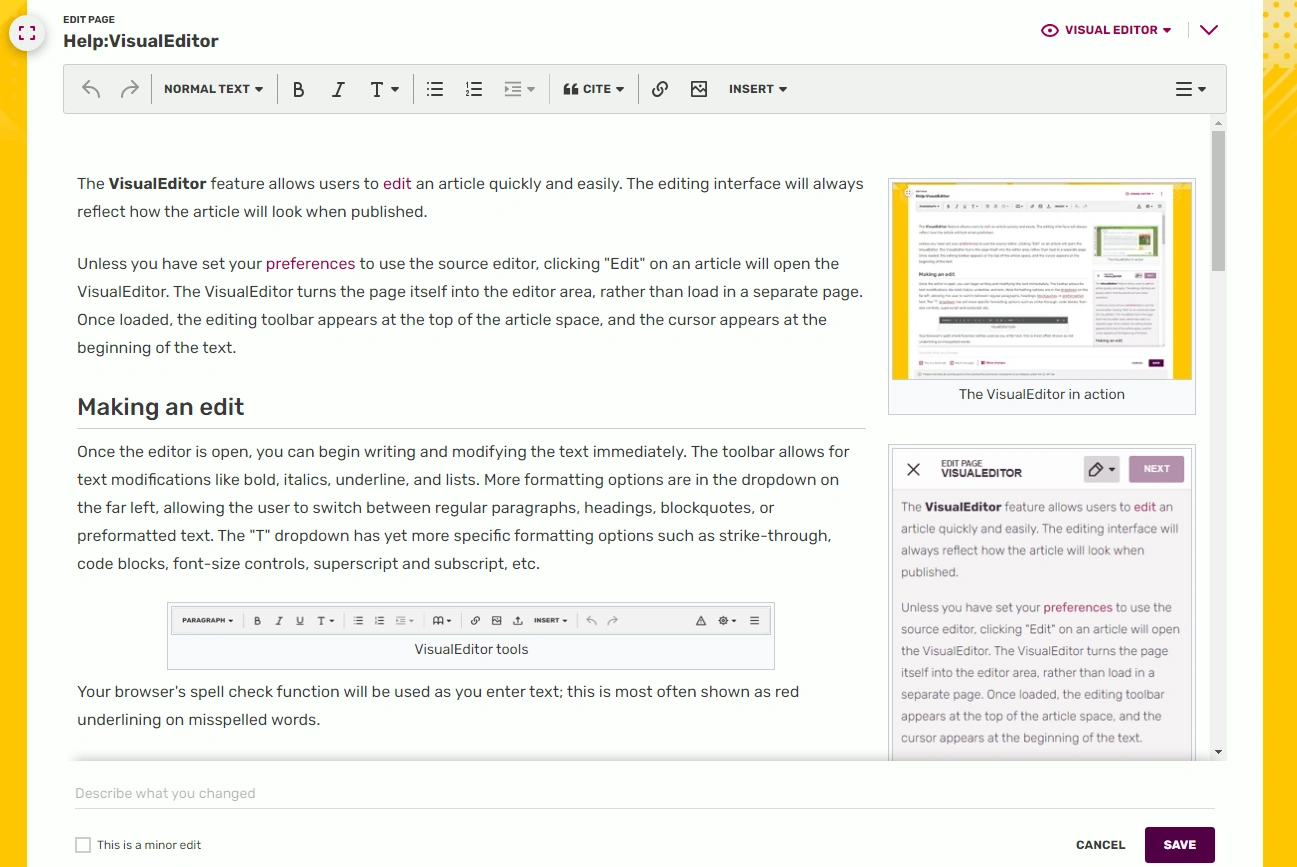

The VisualEditor in action
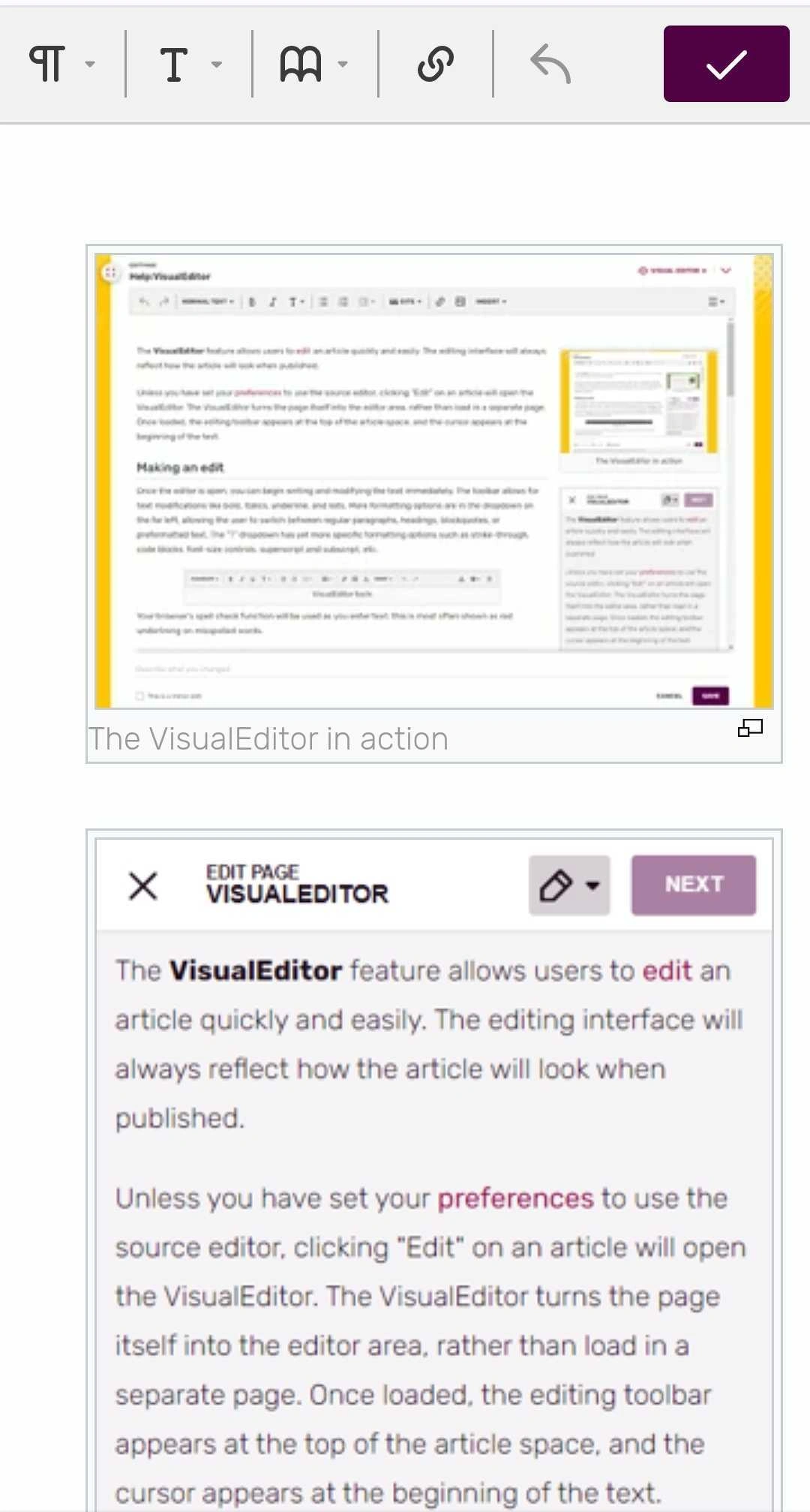

The VisualEditor on mobile
The VisualEditor feature allows users to edit an article quickly and easily. The editing interface will always reflect how the article will look when published.
Unless you have set your preferences to use the source editor, clicking "Edit" on an article will open the VisualEditor. The VisualEditor turns the page itself into the editor area, rather than load in a separate page. Once loaded, the editing toolbar appears at the top of the article space, and the cursor appears at the beginning of the text.
Making an edit
Once the editor is open, you can begin writing and modifying the text immediately. The toolbar offers many modification options. From left to right, the editor offers the following options:
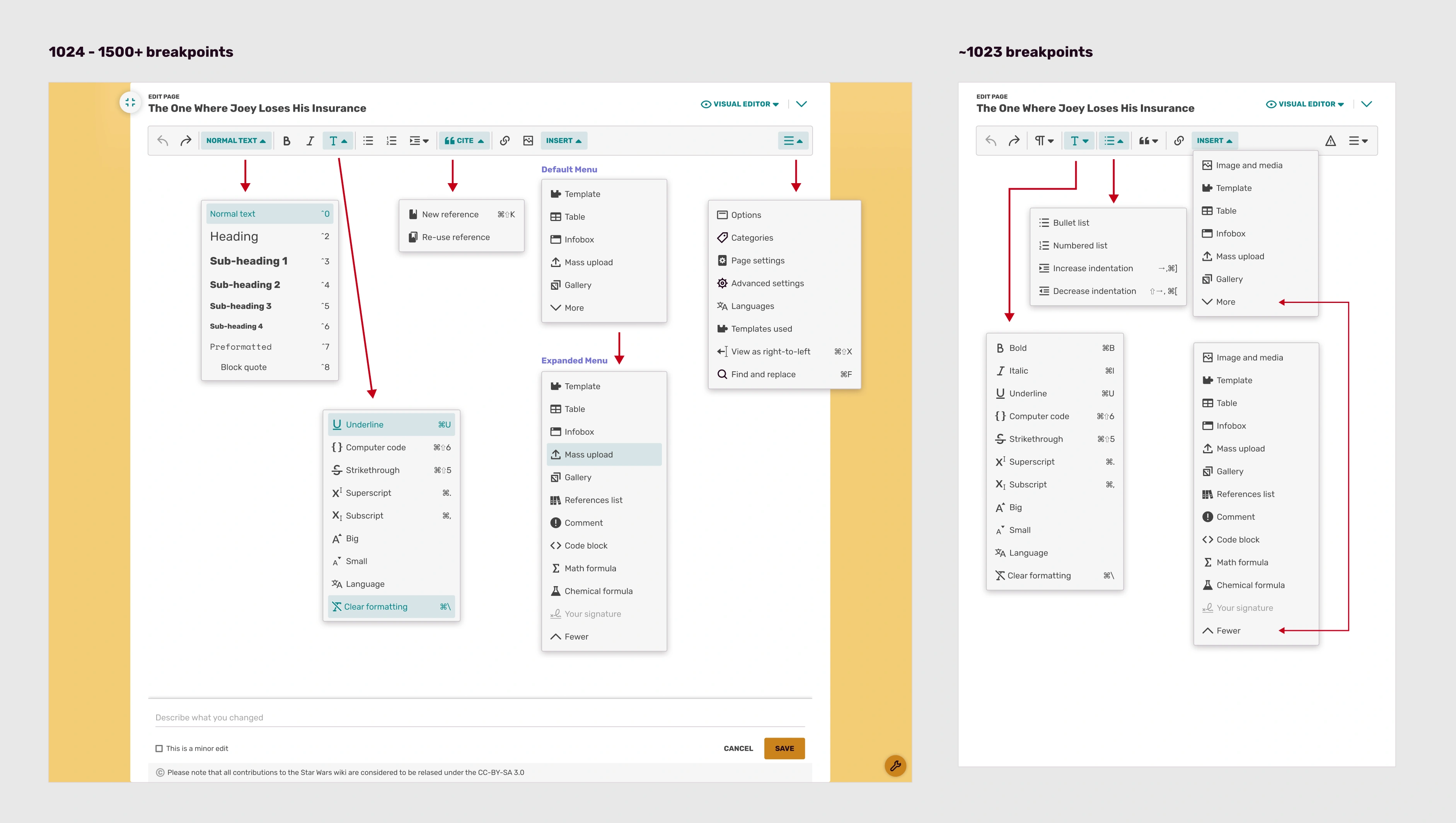

VisualEditor tools
- arrow icons: undo an action or restore an action
- "normal text" dropdown: allowing the user to switch between regular paragraphs, headings, blockquotes, or preformatted text
- B: bold text
- I: italic text
- T: opens a dropdown menu with yet more specific formatting options such as strike-through, code blocks, font-size controls, superscript and subscript, etc.
- create lists and control the indentation
- “cite: allows you to add a new reference or re-use one
- chain link icon: add a link, internal or external
- landscape icon: opens the media settings popup to allow you to search the images on the wiki or upload a new one
- insert dropdown: allows for the addition of more advanced objects to an article
- menu icon (three horizontal bars stacked) on the far right: holds more article options
Your browser's spell check function will be used as you enter text; this is most often shown as red underlining on misspelled words.
It's strongly recommended that you add notes in the "describe what you changed" field at the bottom of an editor before clicking "Save", as this will help other editors to figure out what you are attempting to do. You can also hit "Show changes" for a wikitext difference of your changes before saving.
Creating a link
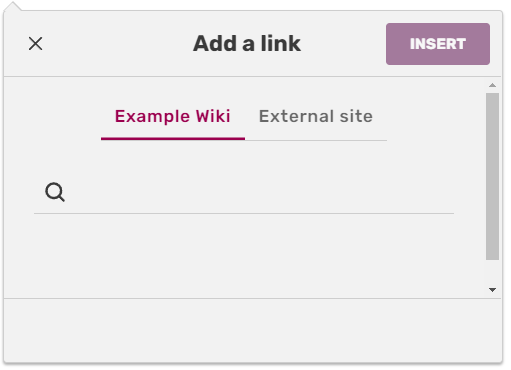

Link creation dialogue box
The toolbar also has the link tool (the chain link icon) that's used to link words or phrases to other pages on the same Fandom wiki. To create a link, either:
- Click the link button without selecting any text – you can then type in the intended destination in the tool, and this will be used as the link text.
- Insert 2 square brackets
[[, then type in the intended destination in the tool. - Highlight some text, then click the link button – this will keep the highlighted text, but you can point the link itself at a different destination.
If the destination article already exists on Fandom, you can simply start typing the name of the page and a list of suggestions will appear. When you're done, simply hit enter or click elsewhere on the screen to dismiss the dialog. Click the linked text to access the dialog again for further changes.
- Using the shortcut CMD+K (Mac)/CTRL+K (Windows) to open the tool.
Hovering over existing links will allow you to edit the display text or modify the link.
Adding elements
Citations, media, and other advanced elements can be added to a page via the editor tools. The "Cite" icon dropdown allows references to be added to an article or to re-use one, whereas the "Image" icon allows for images and videos to be searched for and added to pages. You can also upload images this way.
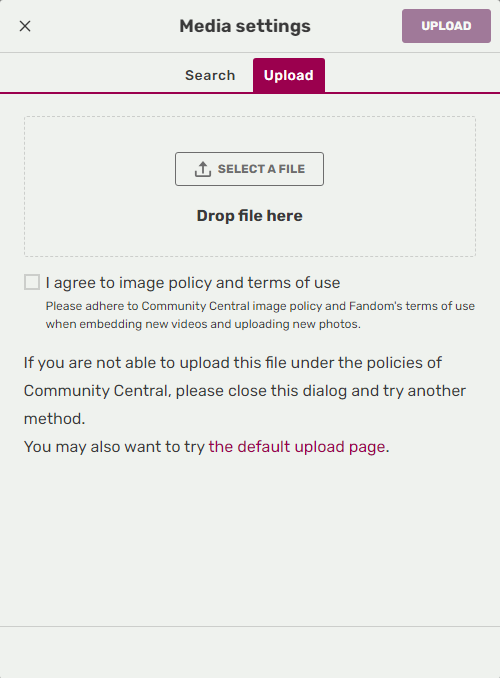

Video manipulation dialogue box
Once added, clicking any of these elements will generate an "edit" dialogue box wherein they may be manipulated. Images and videos can be positioned, captions or alt text added, borders around them controlled, and more. Citations can have their contents modified or added to groups.
For more control over the position and formatting of images, see Help:Wikitext#Image formatting.
Insert
The "insert" dropdown allows for the addition of more advanced objects to an article:
- Template — Allows the user to search through the entire template namespace for one to insert into a page.
- Table — Adds a basic table that can be manipulated.
- Infobox — Displays a list of Portable Infoboxes, which the user may insert into the article. There is also a link to make a brand new infobox.
- Mass upload — clicking the mass upload icon enabled you to upload multiple files at once
- Gallery — Search for media on the wiki to create a gallery
Clicking the "more" button, you'll also have access to the following options:
- A reference list for citations
- Comment — Adds a note visible only to other editors.
- Code blocks
- Mathematical formulas
- Chemical formulas
- Signatures — this option is only available when you access the wiki while in the (user) talk or forum namespace. It inserts
~~~~onto the page to easily leave your user signature and date stamp on the page.
Clicking the "fewer" button will hide these less-commonly used options from view again.
Page options
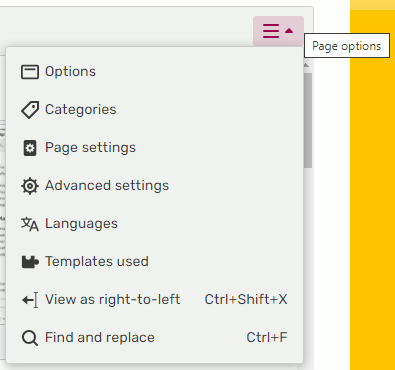

Options dialogue box
The menu icon on the far right of the toolbar has a list of options that open different panes in the options dialogue box. Here, you can manipulate article categories, manipulate the table of contents and redirects, control the interlanguage links, view the templates used on the article, and more.
One of the last few tools available is the find and replace tool, which can be opened from the options dropdown or via the CMD+F (Mac)/CTRL+F (Windows) command.
Switching to source editor
Linked prominently in the top right corner of the page, above the article, is a dropdown where you can find keyboard shortcuts, read an advanced user guide, and switch to source editor. Source editor allows you to view the underlying wikitext at work in the article.
Next steps
- Learn how to create a new article.
Known issue
Due to a bug on Wikimedia Foundation's side, Parsoid (a library for bidirectional transforming wikitext and HTML) can't properly pass an argument to a nested extension if the extension is wrapped in another extension that uses HTML-format tags. To work around the bug, you can replace all the parser tags with {{#tag:EXAMPLE_TAG ... }} parser function. We will continue to monitor this bug report in the meantime.
Further help and feedback
- Browse and search other help pages at Help:Contents
- Check Fandom Community Central for sources of further help and support
- Check Contacting Fandom for how to report any errors or unclear steps in this article